
Help
This is how TippSchmiede works, no matter which round you play in. Concrete numbers are set by each round itself: how many jokers there are, what an exact hit is worth and how many coins there are to win. You will find those in the rules of your round, not here: in the round, the “?” at the top right opens a window, and “Rules of this round” is at the very top.
About the name
TippSchmiede is German. Say it roughly like ‘TIPP-shmee-duh’. A Tipp is a prediction, a Schmiede is a forge: the place where you forge your own prediction game, with your rules, your sports and your prize groups.
For players
Creating an account and signing in
You create an account under “Register”, with your email address and a password; on an invitation, “Create an account” takes you there. You then get an email to confirm the address. Its link leads to a page with the button “Confirm email address”, and only that click confirms your address and signs you in. That way no program that opens links in emails ahead of you can use up the link before you do. If no email arrives, check your spam folder too.
If you sign in before confirming your address, the sign-in page tells you so and offers “Resend confirmation email”. That also helps if the link in the first email has expired.
With “Sign in with Google” on the sign-in or the registration page you need no password of your own. The first time, this creates your account, with no confirmation email at all.
If you have forgotten your password, “Forgotten your password?” on the sign-in page leads to a field for your email address, and we send you a link. As with the confirmation, it first leads to a page with one button, “Set a new password”, and then you enter the new password. You can change your password any time in your account under “Change password”, with the current and the new one; afterwards you are signed out on your other devices. If you only sign in with Google, your account has no password, and you will see a note explaining this instead of the form.
Your “Display name” is your name in all your rounds: the others see you under it in standings and predictions. You can enter it straight away when you register. If you sign in with Google, the app uses the name from your Google account. If you leave the name empty when you register, it uses the part of your email address before the @. You can change it any time in your account.
If you follow an invite link, the app takes you back to the invitation, whether you sign in, register and confirm your email address, or use Google. Otherwise it opens your round if exactly one is running right now, and “My rounds” if not.
Joining and join requests
The invite link or the code makes you part of a round. The link leads to the invitation, which shows you the round, its competition and who is inviting you; one click on “Join the round” and you are in. You enter the code on “My rounds” under “Join a round”. If you have to sign in or create an account first, the link brings you back to the invitation afterwards. If a round admin invites you in the app, you find the invitation under the bell at the top right: pressing the bell shows it.
You can join as long as a match in the round is still to be played, even in the middle of the season. Matches that kicked off before you joined do not count for you. Instead, you start in last place: with the lowest total that any member already in the round scored in the matches you missed, capped at zero. The “Penalty for no prediction” set in your round’s rules is then deducted once more. You see your starting score on the “Results” tab on your own card as “Starting score”.
If the round is full, you can request to join. Who moves up is decided by the round admin; nobody moves up on their own. The same applies while the round admin has to make an additional payment for the round: the round then admits nobody new, even when places are free, but you can still request to join, and your request waits. Whoever is already in keeps predicting.
In some rounds the round admin admits every new player personally, even when there is still room: your request then waits until the admin decides.
While your request is waiting, you are not a member yet and cannot make predictions. If the round admin admits you, a notice appears under the bell. The app does not report a declined request separately; it shows on “My rounds” under “Your join requests”. There you see where each request stands, and you take back a waiting one with “Withdraw”.
You cannot leave a round yourself. If you no longer want to play, tell the round admin: before the first kick-off they remove you together with your predictions; after that they can only withdraw your access, and your predictions stay in the standings. You switch off this round’s emails in your account under “Email per round”.
My rounds
“My rounds” shows all your rounds on one page. The running ones are at the top, each with its competition. To the right you see how many matches have not kicked off yet and are still missing your prediction, with “open” after the number, or a tick if there is nothing to do there. One click takes you into the round.
If exactly one of your rounds is running right now, the app takes you straight into it when you open the site; from there, the arrow at the top left of the round takes you to “My rounds”. Further down you create one with “New round” or join one with an invite code under “Join a round”.
If you have asked to be admitted to a round, the section “Your join requests” appears above “Join a round”: for each request the round and where it stands, “waiting”, “declined” or “expired”. You take back a waiting one with “Withdraw”, without being asked again. If the round admin admits you, the row disappears and the round appears among your running rounds. A request has expired once no match is left to be played in the round.
As long as you have not answered it, the card “A quick word about email” sits at the top with two questions: whether the app may send you emails, and whether round admins you have played with may see your email address to invite you to new rounds. Once you have answered both and saved, it disappears and does not come back; you can change both afterwards in your account.
At the bottom, under “Finished”, a single line first shows your record: how many rounds you have played to the end, how many of them you won and how far up you finished on average, measured against the size of each round. The smaller the share after “on average top”, the further up. Points and coins do not count there, because every round awards them differently, and a round in which you were the only player does not count. Only you see your record. Below it are the rounds their round admin has closed, the most recent first, each with your place. Their standings stay as they were when the round was closed.
The overview
The “Overview” tab is the start page of every round. At the top is the status line: today’s date, a bar showing how many of the round’s matches have been played, and, if your round has coins, a coin with a number: your coin balance. It counts the coins you have won in prize groups that are already decided, even before the round admin awards them at the end. If the round is closed, “This round is closed” appears below, and points and results no longer change.
Below that, the “Changes” box appears if something in the schedule has changed. Under “Open” you see what you still have to do: the matches without your prediction by “today”, “tomorrow”, “this week” and “in total”, plus the “Overall winner” and open bonus questions with their next deadline. Pressing the matches takes you to the “Predict” tab, where you predict exactly those; on the “Predictions” tab, which from kick-off also shows the others’ predictions, you answer bonus questions and predict the overall winner.
Under “Next matches” are the matches that kick off next, predicted or not. You can enter your predictions right here, in the same row showing recent form as on the “Predict” tab, and change them until kick-off; for races, follow the “predict” link to make your prediction on the “Predict” tab. “Recent matches” shows what has already kicked off, the most recent first, with the result or “In play”, your prediction and your points. You set how many matches the two boxes show in their title, counted in matches or in days; your browser remembers the choice.
Under “Matches in play” are the matches that have kicked off and have no result yet. Under each one you see how your round predicted it: every predicted score with the number of its predictions and jokers, your own prediction framed in gold and “none” for missing predictions. The eye next to it opens “What if…”: you enter a score and see how your place and your gap to the top would move in the overall standings and in every prize group affected. Nothing is saved. A race in play shows neither how your round predicted it nor “What if…”.
If matches have been scored since your last visit, “Since your last visit” opens by itself when you open the overview: those matches with your points. You close it with one click, and the small line at the top of the overview opens it again. Your browser on this device remembers when you were last here, not your account.
Further down, once matches have been scored, you see the “Current standing” with the top five and your own row; “Show all” shows the full table. If your round has prize groups, the “Prize groups” card below shows the same for the group and phase you choose in its list. If you are the round admin, the box “For you as admin” follows at the very bottom.
In the header, the arrow on the left leads to “My rounds”. If you are in more than one round, the round name is a selector with an arrow next to it, through which you switch straight to another round. Through the “?” you reach the rules of this round, with its point values, jokers and prize groups, and the help. If a pencil appears next to the round name, you may enter results in this round. The pencil at the top is not a button, only an indicator. You enter results at the match itself: in the overview under “Matches in play” and “Recent matches” and on the “Predictions” tab. You enter a race only in the overview, at the race in play.
Predicting and deadlines
On the “Predict” tab you make your predictions. The “Predictions” tab shows what has been predicted, your own predictions straight away and the others’ from kick-off; that is also where you answer bonus questions and predict the overall winner.
You may predict up until the kick-off of the match in question, with no grace period and not a minute of leeway. Until then you may change your prediction as often as you like. With the kick-off, two things happen at once: your prediction is locked, and it becomes visible to the other members. Before that nobody sees what you predicted, not even the admin; the admin only sees who has not predicted yet.
A half-filled prediction is not saved, and the row tells you so. If a match is moved, its deadline moves with it. If it is called off, it is locked, even before kick-off: predictions on it earn no points, and a joker on it comes back to you.
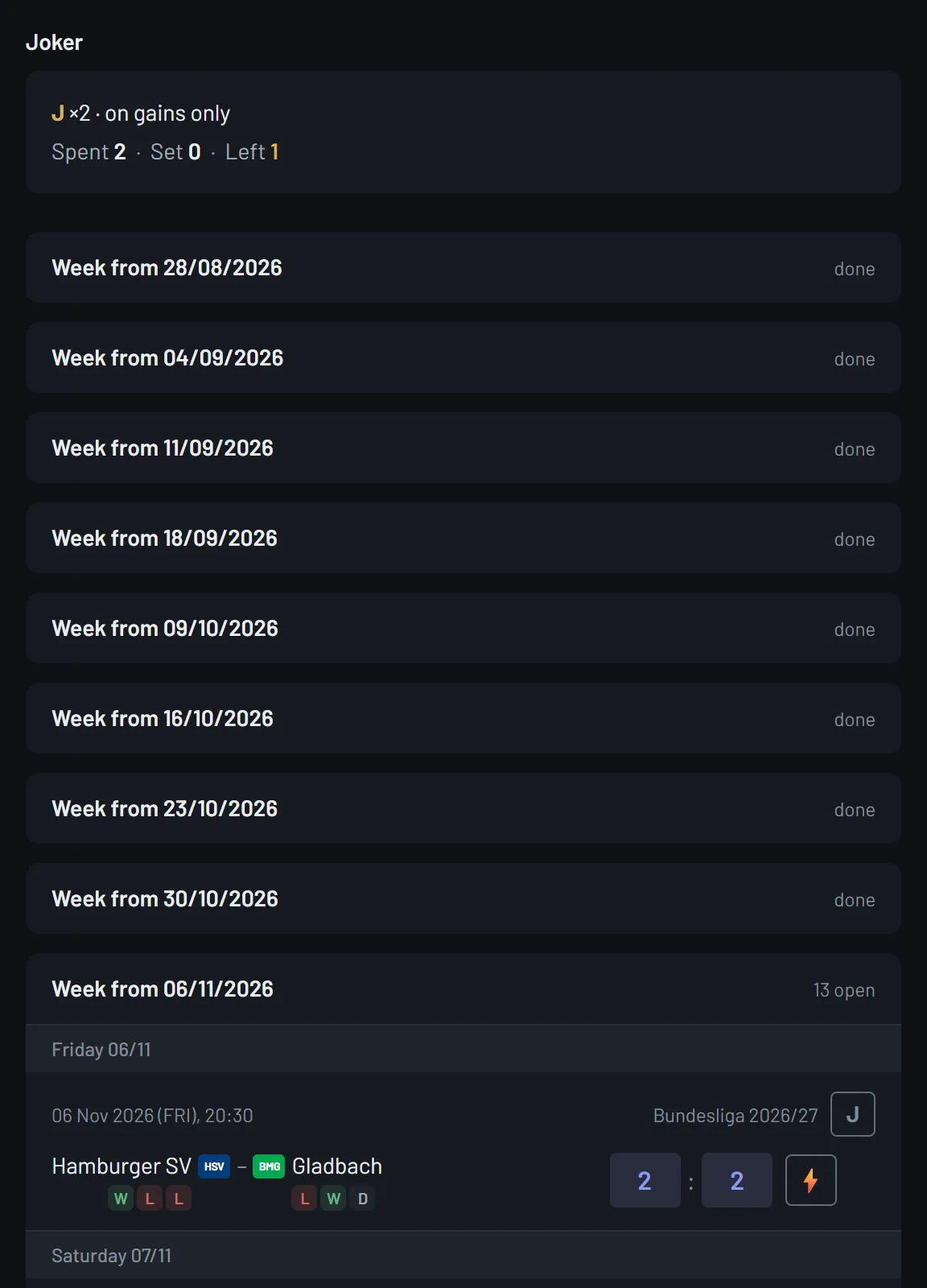
Under each team in a prediction row you see its recent form: up to three boxes with its latest results in this competition, the most recent on the right, W for a win, D for a draw, L for a loss. The same row appears under “Next matches” in the overview. Hover over the boxes to see what the letters mean; the rules of the round explain them too. Races have no recent form.
Kinds of prediction
Mostly you enter two numbers, the score of the home and the away side: goals, points, sets or legs, depending on the sport. In football, quick select under the lightning bolt helps: a grid of the usual results, a prediction at a touch.
In darts, tennis and volleyball you predict the score in sets, or in legs for darts matches played without sets, depending on the schedule. Only possible final scores are valid: the winner must reach the exact number of winning sets or winning legs required for that match, the other side fewer, and draws are not possible. How many there are is given by the schedule, in a tournament possibly different per phase, more in a final than in a semi-final, for example. Here too quick select offers exactly the valid scores, and who wins follows from the score.
For races you predict an order: you choose the places from the front backwards, and a driver you have chosen disappears from the other lists. A shorter prediction is fine, a gap is not.
The joker
The joker is a tactical decision while predicting: play it on a match and it multiplies the points you get for that match. It is not a fixed bonus, it depends on the result. Whether there are jokers, how many and with which multiplier is set by the round admin in the rules; you see how many you have left in the “Joker” box while you predict. A joker beyond your allowance automatically turns into an ordinary prediction, so you cannot play more than you are entitled to.
Whether it multiplies only positive points or negative points as well is set by the round. The “Joker” box tells you: “on gains only” means negative points stay as they are; “cuts both ways” means negative points are multiplied too.
It cannot be played on a match that has been called off; if it was already there, you get it back.
Bonus questions and the overall winner
Bonus questions are set by the round admin; you answer them on the “Predictions” tab until their deadline. After that everyone sees all answers, and the round admin enters the correct one. Only an exact answer counts: upper or lower case and spaces at the edges do not matter, an answer that is nearly right earns nothing. The points for a correct answer are set by the round, and they count in the standings.
You predict the “Overall winner” on the “Predictions” tab as well, if your round offers it: who wins the competition as a whole. Predictions for it close at the very first kick-off of the schedule and never reopen. It earns no points for the standings; it is a prize group of its own, with coins.
If your round allows a “Second prediction”, you name a second team. The second prediction only counts if nobody gets the first prediction right; if no second prediction is right either, the coins of this prize group lapse. In a tournament, a prediction on a team that is already out appears struck through on the “Predictions” tab.
How scoring works
Every prediction earns points, graded by how close you were to the result: an exact hit brings the most, the right outcome less, and depending on your round’s rules a wrong prediction can cost points. If your round deducts points for the distance from the exact result, even the right outcome can fall below zero.
In races each driver you predicted counts on their own: full points for the exact place and fewer for each place off, but never below zero. Depending on the rules, there is also a bonus if your first three are also the first three at the finish, in any order, and a value of its own for a driver you predicted who is not among the recorded places, retirements included; that value can cost points.
If you do not predict a match, you get the round’s no-prediction value for it: a fixed deduction or one measured against the worst real prediction, with an upper bound depending on the rules. A match that nobody predicted counts like that for everyone.
Where a match can end in a draw, the round’s “Knockout scoring” decides which score counts: for example the one after regular time, the one after extra time or the final score including penalties.
The standings count a match as soon as it has a result, even while it is still being played. As long as not all results are final, “provisional, live” appears under the “Current standing” in the overview.
From the first kick-off a round’s point values, jokers, knockout scoring and prediction variety are fixed, the same for everyone, to the end. Prize groups and coins are not part of that: they can be changed until the coins are awarded; only whether a second prediction on the overall winner is allowed is also fixed from the first kick-off.
If two members are level on points, they do not share a place: the places are still numbered one after another, and there is no tie-breaker. For the coins, members level on points do count as level; how they then share is explained in the topic on coins and prize groups. What you see under the community trend does not change your score, by the way: it only shows how others predicted.
Coins and prize groups
Besides the overall standings, a round can set up further prize groups, for example for a single matchday, a month, a tournament group or a knockout round, plus the overall-winner prediction and the lucky loser for everyone who would otherwise have come away empty-handed. Which groups exist and how many coins there are to win in them is decided by each round for itself. Coins are play money: not for sale, not payable out, without monetary value.
The coins are only awarded at the end, once all matches have been played, all bonus questions are resolved and, where there is one, the overall winner is decided; then the round admin records them and closes the round. Until then the “Results” tab shows under “Prize groups” who is ahead in which group, and under “Coin balances” how many coins each member has won so far. You also see your own balance at the top of the overview: the number next to the coin.
If several members are level at the end of a segment, they share the coins, unless the round has laid down that everyone level gets the full number.
One prediction for several rounds
If you play in several rounds on the same schedule, the box “Keep predictions in sync with” appears while you predict. Switch a round on there, and every prediction you save is entered in it too: score or order. Jokers, bonus questions and the overall winner stay per round.
If your predictions already differ, the app asks when you switch it on which ones should apply; matches that have kicked off stay as they are. Switch it off again and the predictions stay as they are at that moment, and the rounds go their own ways. Only you see the link.
The “Results” tab and the player comparison
The “Results” tab shows how you are doing and why. “Player statistics” shows the standings with exact hits, right outcomes and missed matches, sortable by any of its values. “Points over time” shows a line for each member with a point for every day on which matches were scored. “You against the round” compares you with your round and with everyone predicting on the same schedule, “The round as a whole” shows where the round agreed and where it was wrong, and “How you predict” shows your own habits.
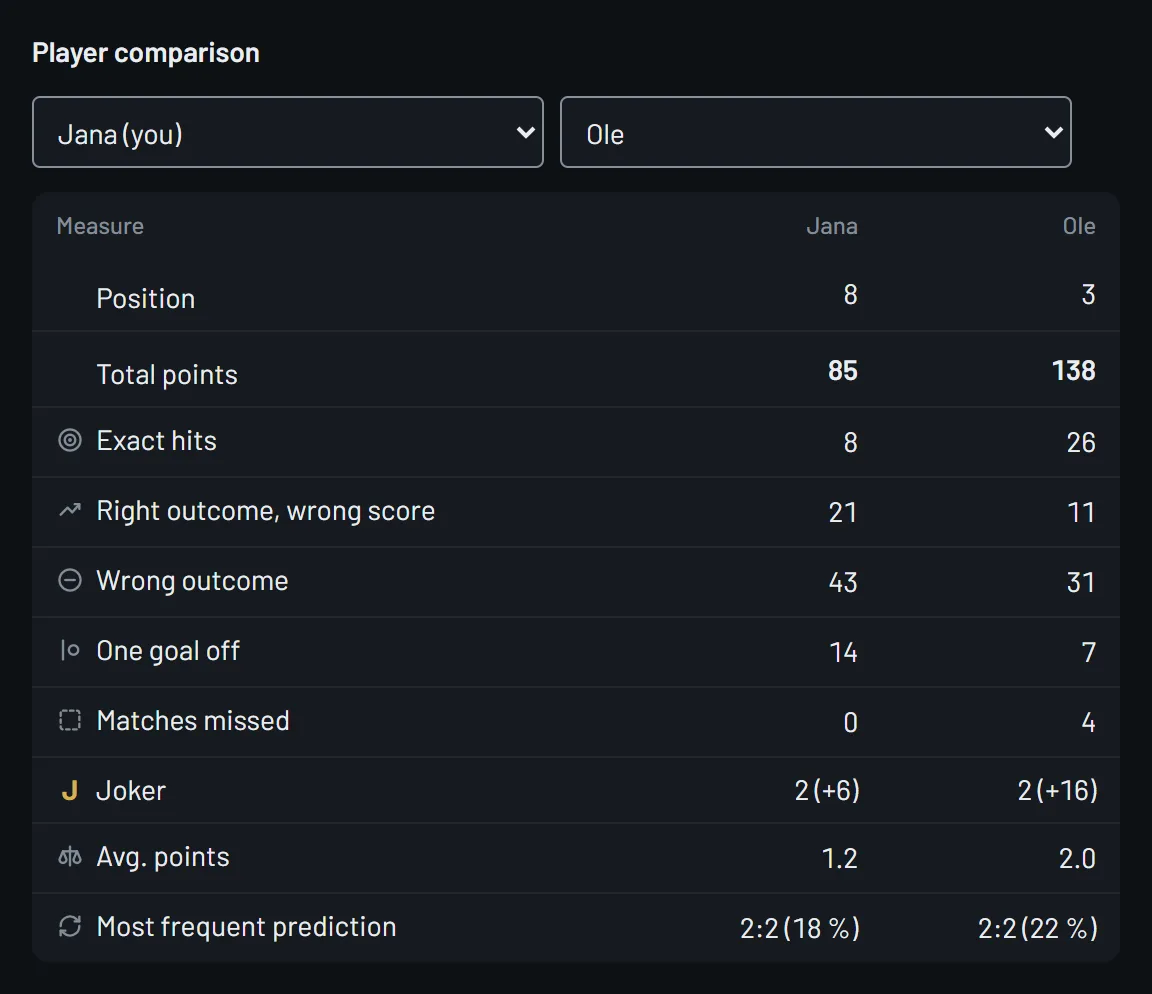
Then come “Bonus questions and overall winner”, the “Prize groups” with the current standing in each prize group, the “Player comparison”, which puts two players side by side on every measure, and the competition’s “League table” where there is one. If your round has coins, the “Coin balances” follow: how many coins each member has won so far. You set for yourself under “Customise view” which sections you see and in which order.
While you predict, the “Community trend” shows how the rounds on the same schedule predicted a match: anonymously, in shares. It only appears once enough predictions have been submitted, never on a round’s own schedule, and only if the round admin has switched it on. “Prediction variety” shows each member’s most frequent prediction in “Player statistics” once they have enough predictions on matches that have kicked off. Both are information only and earn no points.
When the schedule changes
If someone changes your round’s schedule by hand, it shows on the “Overview” tab at the top, in the “Changes” box: moved kick-off times, call-offs, corrected results, new, deleted or restored matches and swapped teams, for exactly the matches your round plays. The first result of a match is not a change and does not appear there. It also shows when the schedule is opened up to other rounds or is again only for its own rounds.
You also get a notice under the bell saying how many changes there were, in every running round and without your own. In paid rounds an email follows as well, once things have been quiet for a while after a change, one per round, unless you have switched it off in your account. Your own changes are left out, the times are in your local time, and an opening of the schedule appears only in the box and under the bell.
The bell and notifications
Wherever the person icon appears at the top right, a bell sits to its left. If something is waiting for you, it carries a number, and pressing it opens a small window below it; you stay on your page. If nothing is open, it is grey and cannot be opened. The window closes with a click beside it, with Escape or with the bell itself.
If a round admin invites you to a round in the app, the invitation is waiting here: who is inviting you, to which round and for which competition, with “Join” and “Decline” below. “Join” makes you a member at once and takes you into the round. If the round cannot take you in right now, for example because it is full, or if its round admin admits new players personally, the card says so beforehand and the button reads “Request to join”: your request then waits for the admin’s decision and appears on “My rounds” under “Your join requests”.
“Decline” asks once more, because for this round it is final: the round admin cannot invite you there in the app again. With the invite link or the code, the way into the round stays open to you all the same. Once no match is left to be played in the round, the invitation expires and disappears.
Under “Updates” you find what the app has to tell you: that the schedule of one of your rounds has changed, that a round admin has admitted you, that a competition you asked to have added to the catalogue is now there or was declined, that your own schedule has been opened up to other rounds or the opening was declined, or that a report of yours has been closed. Most of them take you with one click to where there is more to see and are dealt with by that; the update about changes only once you open the “Changes” box in the overview. The × next to an update deletes it at once. Invitations have no ×, they wait for your answer. If you run a round, its waiting “Join requests” appear here as well; one click takes you to its members.
If an invitation has been waiting for three days without you opening the bell or the “Notifications” page in that time, you get an email: how many invitations are waiting for your reply, without the round or any names, with a button to that page. The page shows the same as the window under the bell. The email comes at most once a week, however many invitations are waiting, and only once for each invitation. It belongs to no round, so no round’s switch applies to it. You can turn it off only with the master switch in your account, “Email from the app”: set to “No email at all”, it also stops reminders and notices of schedule changes.
Account, emails and contact
A round sends emails only if it is paid: a reminder while predictions are still missing, per matchday in a league and per calendar day in a tournament, and an email when its schedule has changed. Under “Email per round” in your account you decide for each round separately whether it writes to you; the switch covers every email of that round. In the app every round keeps you informed regardless.
Above them sits the master switch, “Email from the app”. Set it to “No email at all” and the app sends you no email any more: no reminders, no notice of schedule changes, no heads-up about an invitation and no confirmation of a report, from any round, whatever you have set per round. Emails about signing in still arrive, such as the confirmation when you register and the link when you have forgotten your password.
Under “Invitations to new rounds” you answer a second, independent question: whether round admins you have played with may see your email address to invite you to new rounds. They can invite you in the app either way, and you can decline any invitation. As long as you have not answered, they only see your name, no address.
The language applies to the site and to the emails. The app shows times in your browser’s local time; emails name the time zone alongside. You switch language and appearance any time in the menu under the person icon at the top right: with the flags, and with “Appearance”, which cycles through “System”, “Light” and “Dark”. Your browser remembers the appearance, not your account.
The same menu holds “Report a problem” and “Suggest a feature”. Both open a window where you choose the area and describe in your own words what happened or what you would like. The page you are on goes along automatically, for a problem also details such as device and app version; the window shows all of it under “What we send along automatically”. With “Let me know by email” you get a confirmation by email. Once your report has been dealt with, a notice appears under the bell, and with the switch an email as well. If you have switched off email in your account, the switch is missing and you only get the notice.
Without an account, or if signing in does not work, you write to us through the contact page. You reach it at the end of this help and on the sign-in page through “Write to us.” after the question “Trouble signing in?”.
You delete your account yourself, in the account under “Delete account”, for good. Your predictions remain anonymously under “Former player” so that your fellow players’ standings stay valid; any rounds in which you are the only member are deleted as well. You hand over your role as round admin any time under “Set up round” → “Members” with “Hand over admin” on a player’s ⋯. If you run a round with other members, that is required before you delete; the account offers the handover for this itself.
For round admins
Creating a round
You create a new round on “My rounds” with “New round”. First you choose the way: “Use a ready-made schedule” or “Create your own tournament or league”. If you come through a link that already names a schedule, for example from a page that presents a particular competition, the form for a ready-made schedule appears straight away, with that schedule already chosen.
You look for a ready-made schedule under “Event”. You can search by “Schedule name” and, below it, use the buttons to choose a sport and “League” or “Tournament”; everything can be combined, and every change searches at once. Once you have chosen a sport, “+ add” next to “Teams and athletes” opens a window: there you search, tick and come back with “Apply”. You can choose every team and athlete that takes part in a schedule of that sport from the catalogue or the community; each one you choose then appears as a chip with an ×. From two chosen on, the switch “All selected must take part” decides. On, the search finds only schedules in which all of them take part; off, one is enough.
The hits appear in a list, with the schedules from the catalogue always first. Each row starts with a sign for the kind: a cloud with an arrow for the catalogue, a node graph for the community. Next to it are the name, league or tournament, the number of matches and the period, and below that, where the results come from: “We enter the results” for the catalogue, “Rounds enter the results” for a community schedule, there with the day of the latest entry and the number of rounds it runs in. If you have chosen teams, the row names those that take part there. The row you choose has a golden border. Below it, a schedule from the catalogue says “We enter the results for you.”, a community schedule that its results are entered by hand.
Then you give the round a name and choose the scoring template, plus the “Knockout scoring” where a match can end in a draw, and whether there are jokers. Before you create the round, the form explains what it means when someone else maintains the schedule: you see every change in your round’s overview, but you cannot prevent or revert it yourself. In return, many rounds predict on the same schedule, and only that makes the community trend possible.
If your competition is not there, the sentence at the end of the list helps. “Request a schedule” takes you to “No matching event?”, where you suggest it for the catalogue; that is also where you see whether it was added or declined. “create your own schedule”, like “Create your own tournament or league”, leads to your own schedule: the sport, tournament or league, the scoring template and, where needed, the “Knockout scoring”, plus the choice whether you enter the matches yourself or import them from a file. At the top that form asks “Might the competition already exist?”, and “Check the search first.” takes you back to the search. You maintain your own schedule yourself, results included; you set up jokers there later under “Rules and point values”.
If you do not run a round yet, the form also asks how you found us. The answer is optional, and “Prefer not to say” is preselected. If you come through a link we have handed out ourselves, the answer is already in the link, and the question is left out.
Once the round exists, you are its round admin. A round on a ready-made schedule opens “Set up round” straight away, where the package and the players are still open. Your own tournament opens “Manage schedule”, because without matches there is nothing to set up: there you enter who plays and when, or import your file. You reach “Set up round” any time afterwards in your round, through the menu under the person icon at the top right.
Setting up your round
“Set up round” is the area where you, as round admin, set what is decided once; predicting and entering results stay in the round. You reach it in your round through the menu under the person icon at the top right, and in the overview through “Open” in the box “For you as admin”. Only you see it. Next to the heading of every item, “Help on this topic” leads to the matching section of this help.
At the top a bar shows how far the setup has got. Below it, “What would you like to do?” lists the most common tasks, each with the item it lives under: “Invite players”, “Hand over admin”, “Appoint result keepers”, that is, allowing players to enter results, “Set the coins per player” and “Close the round”. Only what works in your round is offered: inviting while a match is still to be played, handing over and appointing only once someone besides you has joined, and appointing only where your round may allow results.
Under “What the round needs” there are four steps: “Schedule” and “Rules and point values” are done when you create the round, “Package” once you have chosen a package, the free one included, and “Members” once someone besides you has joined. Steps that are done carry a tick, open ones the word “open”. Under “Fine-tuning” follow “Bonus questions”, “Coins and prize groups”, “Competitions”, “Teams” and “Team names”, without ticks, because a round is complete without them too. Every tile says in one line where things stand and takes you there. Once the round is over, package and members drop out if they stayed open.
In your round’s overview, the box “For you as admin” sits at the very bottom for you, collapsed. Its header says in one line what is open, or “nothing to do”. Opened, it shows how far the setup has got, with “Open”; waiting “Join requests”, if there are any, with “View”, which takes you to the members; and under “Not predicted yet” the members who are missing predictions for the next matches, each with the number of open ones. Only you see these names; even you see what they predict only from kick-off.
Once your round has awarded its coins, the app does not recalculate on its own a match whose result is corrected afterwards or which is called off. If “Award coins now” exceptionally does not close the round as well, for example because the overall winner changed in between, the overview shows the box “Something changed after the coins were awarded” at the top, naming the matches affected; with “Recalculate now” you take over the new points. Coins already awarded stay as they are. A closed round recalculates nothing any more: its points and places stay as they were when it was closed.
Which matches your round plays
A round does not have to stick to a single competition. You may pull several competitions of the same sport together, such as league, cup and the European nights, with a single leaderboard. You set which matches belong to it under “Set up round” in “Competitions” and “Teams”.
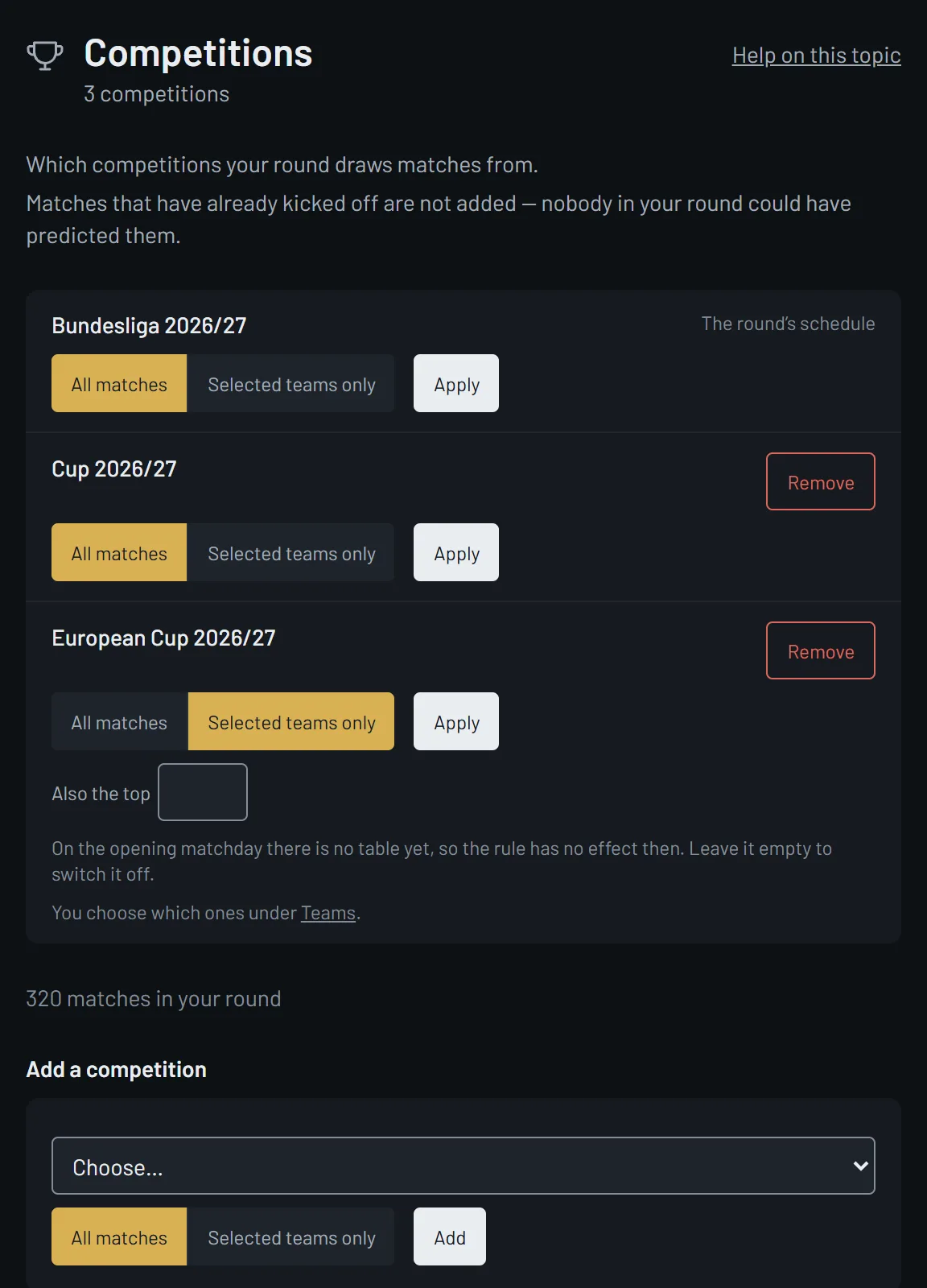
Under “Competitions” your round’s schedule is the first row. You add more under “Add a competition”; only schedules of the same sport are offered. There you choose the competition and “All matches” or “Selected teams only” and press “Add”. It then appears as a row of its own in the list above. If you change the choice in a row later, you confirm it there with “Apply”. “All matches” brings in everything played there. “Selected teams only” takes from it only the matches of the teams you set to “Always” under “Teams”. Below the list you see how many matches your round has as a result.
For a league, “Selected teams only” also shows the field “Also the top”: it brings in the teams at the top of the table, as many as you enter. This table rule moves with the table: if the league table changes over the weekend, your round plays different matches afterwards. It only applies to leagues, because only they have a table, and on the opening matchday it yields nothing yet.
Under “Teams” you find every team of every competition in your round, each with three buttons: “Automatic” means whatever is set under “Competitions” applies; “Always” brings in all of its matches, from every competition of the round; “Never” keeps them out. That is how you get a round that follows your club alone, across everything it plays. There is a fixed order: “Always” comes before “Never”, and “Never” comes before “Automatic”. So a team on “Always” brings its match in even when the opponent is set to “Never”. “Never” therefore keeps a team’s matches out, except against a team on “Always”.
Above all of this sits one condition no rule overrides: whatever has already kicked off does not come in. Add a team today and you get its upcoming matches, not its past ones; nobody could have predicted those, because at the time they were not part of the round. The other way round, your round never loses what it already holds: a match that has kicked off, or that someone has predicted, stays in even if its competition is dropped later. Otherwise leaderboards would change in hindsight.
If a competition raises the price of your round, “Add” does not take it in straight away. That is the case if it comes from the catalogue and the price for community schedules and your own has applied to your round so far, or if it is a season from the catalogue and the price for a tournament from the catalogue has applied so far. The page then names the difference and offers it for purchase. Buy first, then add; after paying, you add the competition yourself. A free round adds any competition without a purchase.
Where a round mixes several competitions, every match says which one it came from. Under “Team names” you give teams their own names for your round; they apply only there.
Setting the rules
Under “Set up round” → “Rules and point values” you set what a prediction earns: the point values of your scoring template, depending on the template the value for a missing prediction, that is, a fixed deduction or one measured against the worst real prediction, and the “Knockout scoring” where a match can end in a draw. You change the name of the round here as well.
Under “Joker” you decide whether there are jokers, with which multiplier and how many per player. The switch “Only double positive points” decides whether a joker multiplies only plus points or minus points too, and it applies to every multiplier: when it is on, minus points stay as they are; when it is off, the joker is double-edged. Your players read it in the “Joker” box when they predict.
Under “Prediction variety” you set after how many predictions on matches that have kicked off the results show a member’s most frequent prediction; until then a dash stands there. It is for information only and blocks nothing when predicting. If your round plays on a schedule from the catalogue or the community, you also switch the “Community trend” on or off here. “Save & rescore” saves and recalculates the round with the new values.
With the first kick-off the rules are locked, so that the same rules apply to everyone to the end, and likewise once the round’s coins have been awarded: any change would otherwise recalculate every point, including those coins have already been awarded for. The page then says why, and “View the rules” shows the values. Only the name of the round can still be changed, with “Rename”. Coins, prize groups and bonus questions have their own items under “Set up round”.
Setting and resolving bonus questions
You create bonus questions under “Set up round” → “Bonus questions” with “Ask a bonus question”: the question, its points and a deadline, which is mandatory and applies in your local time. That works as long as the round is not closed, even once play has started. Until the deadline you can change the text, the points and the deadline; a question can be deleted until the round is closed, and its answers go with it. You find both in the question’s “⋯” menu.
After the deadline you enter the “Correct answer” at the question and press “Settle”. The app awards the points to everyone who gave exactly that answer; upper and lower case and spaces at the edges do not matter. With “Change the answer” you correct it as long as the round is not closed. While a question is open, the round cannot be closed.
Package and price
Small rounds are free. For larger ones you choose a package and pay once for that one round; playing along is free for everyone. What a package costs depends on the size of the round and on whether it plays a competition from the catalogue and, if so, whether that is a tournament or a season. For a competition from the catalogue: We enter the results for you. The amounts are on the pricing page.
You choose the package under “Set up round” → “Members” before you invite; the code and the ways to invite appear only after that. On every paid card, the line saying who enters the results starts with the sign of the kind of schedule, as above the columns of the pricing page: the cloud with an arrow for the catalogue, node graph and hammer for community schedules and your own; it is golden only on the card you have chosen. The free package is one click with no checkout. For a paid one you confirm “I want the round unlocked right away.” and pay in Paddle’s checkout window, which opens on our page. Paddle sells you the package: the invoice comes from Paddle, and Paddle handles any refund. Paddle’s checkout window shows which payment methods you can use. If you have received a code from us, you redeem it under “Redeem a code”. Before you choose, the field sits below the packages, afterwards under “Upgrade”. The code unlocks a package without payment, and your round then counts as paid. If the round is already over or already has a package of this size or larger, it does not accept the code; the code then stays valid for another round.
If the round grows, you upgrade with “Upgrade” and pay only the difference, as long as the round is running. If it is full, newcomers wait as a join request. Once you have upgraded, you admit them yourself under “Join requests”, one by one or with “Admit all”; nobody moves up on their own.
Reminders about missing predictions and notices of schedule changes by email are sent only by a round with a paid package, including one unlocked with a code. In a free round only the app itself reminds you: with “open” on “My rounds” and under “Open” in the overview.
If a payment for the round is refunded or charged back, an additional payment is due; “Members” then shows “Additional payment due” with the amount and the reason. Until it is paid, the round admits nobody new and invites nobody, not even in the app; whoever comes with the code or the link can request to join. Whoever is already in keeps predicting. If you upgrade, the purchase covers the additional payment as well.
If you detach your round from a catalogue schedule under “Set up round” → “Schedule”, you enter its results yourself from then on, and unless it plays another competition from the catalogue, the price for community schedules and your own applies to it. If the round has already been paid for at the catalogue price, a later upgrade is still charged at catalogue prices.
Inviting and members
Under “Members” you invite once the package is chosen: by link, via “Share”, with the “Code to type in”, or collected from an earlier round in which you are a member. For inviting from an earlier round you get a “Subject” and a “Message” to copy, for your own email or a messenger. “Addresses” are only available from rounds you run yourself, and only from those who agreed; the others appear under “Without an email address”, and you invite them in the app or send them the message yourself. Only you see the code. If it has ended up where it does not belong, you make it invalid with “Renew code”: the old code and every link with it stop working, and whoever is already a member stays one.
Below the selection is “Invite in the app”. It also reaches those you have no address for: they see the invitation under the bell in the header and under “Notifications”, and accept or decline. That works as long as members and open invitations together fit your package. Under “Invited” you see how things stand. You withdraw an open invitation in its row’s “⋯” menu with “Withdraw invitation”, and its place is free for a new one. If someone declines, you cannot invite them to this round in the app again, but the link and the code still work for them.
At the top under “Members” is the switch “Admit new players yourself”. When it is on, everyone who comes in by code, link or invitation waits under “Join requests” until you admit them, even when there is still room. When it is off, everyone gets straight in until the round is full. Whoever is already a member stays one; requests that are already waiting stay put when you switch it off, and you decide on them.
You accept or decline join requests; declining is final. If all of those waiting fit your package and no additional payment is due, “Admit all” admits them with one click. Before the first kick-off you remove a member together with their predictions, and the place becomes free. After that you only withdraw access: their predictions stay, the place stays taken.
In a member’s “⋯” menu you let them enter results with “Allow results”, where your round may do so: on a community schedule and on your own schedule that you created yourself, not on one from the catalogue. The same menu holds “Hand over admin”: afterwards that member sets up the round, and you keep playing as a member; only the new admin can hand the role back. You can hand over any time, and “What would you like to do?” under “Set up round” shows the way too. If you want to delete your account and your round has other members, the handover is required first.
Prize groups and coin balances
Under “Set up round”, item “Coins and prize groups”, you first set the “Coins per player”. That gives the “Coin budget”: the coins per player times the number of members. You split this budget across prize groups: you switch a group on, decide what it awards, and choose under “On a tie” whether it is shared or everyone level gets the full amount. Which groups you can choose depends on the schedule; a round that mixes several competitions knows only the overall standings, the match week and the month. Three boxes above the fields keep count as you type: the coin budget, what is allocated, and what remains, shown with a minus when you allocate more. They are information, not a limit: you may allocate more or less.
You choose what a group awards in the “Coins” column: “Coins” for a fixed amount or “%” for a share of the coin budget. A fixed amount applies per award: a group per matchday awards it again on every matchday, and the line below shows what that adds up to. A share in percent applies to the whole group and is spread over its awards, rounded down to whole coins per award; whatever is left stays in the remaining budget. In the field after the plus sign you add extra coins per award.
The “Overall winner prize group” awards its coins to those who correctly predicted who wins the competition; it brings no points for the standings. With “Allow a second prediction” your players may name a second team as well. The second prediction only counts if nobody gets the first one right; if no second prediction is right either, the coins of this group are forfeited. From the first kick-off of the schedule the overall winner predictions are fixed, and the switch stays as it is.
Coins are awarded only at the end, once every match has been played and every bonus question is resolved. Until then, every player sees the coins won so far in the “Results” tab. You award them under “Set up round”, item “Coins and prize groups”: there, “Award coins” says what the round is still waiting for while something is outstanding; after that, “Award coins and close the round” appears with the button “Award coins now”, and a preview shows beforehand who gets how many coins. If the prize group for the overall winner is on, the button appears only once the overall winner is known as well: for tournaments the app usually recognises it after the final, otherwise you enter it under “Set the overall winner”. Once you confirm, the round is closed, the coins per player, the prize groups and the rules are fixed, and this cannot be undone.
If you want to credit a player with coins or take some back, you record a correction under “Set up round”, item “Coins and prize groups”: there, under “Correct coin balances”, you open the “⋯” menu of their row and choose “Record a correction”. A positive figure credits, a negative one takes back, and a reason is required. The old entry stays, and the correction is added as a second one. Every member sees the coin balances in the “Results” tab, with the reason next to each correction. Coins are play money and have no monetary value.
Entering results
On a schedule from the catalogue you do not have to enter anything: We enter the results for you. You cannot enter one there either, nor allow anyone else to.
On your own schedule and on a community schedule you may enter results, but you do not have to. On a community schedule the results are entered by whoever created it, if anyone did, its schedule keepers, the admins of every round whose schedule it is, together with the players they have allowed to enter results, and us. A round that brings it in only as an additional competition does not enter results there. The latest entry always counts, in every round on that schedule. Under “Members” you can let players do this as well, with “Allow results”.
Results are entered in the round at the match itself: in the overview under “Matches in play” and “Recent matches”, and on the “Predictions” tab at every match that has kicked off. You enter a race only in the overview, at the race that has started, as its finishing order. Whoever maintains the schedule also finds the matches of the whole schedule on one page under “Manage schedule” → “Results”.
Whoever maintains the schedule, which on your own schedule means you, also finds “Call off” in the window for entering a result. Calling a match off clears its result: in every round that is not closed yet, the predictions on that match lose their points, and jokers placed on it are freed. On a community schedule that someone else maintains, only those who maintain it call matches off, not the admin of a round on it. How to correct results, reschedule and call off matches under “Manage schedule” is explained in the help on maintaining results.
When someone else’s schedule changes
If someone else maintains your round’s schedule, you see their changes on the “Overview” tab at the top, in the “Changes” box: moved kick-off times, matches called off, corrected results and more. You cannot revert them, because the same schedule applies to every round on it.
You can still correct a wrong result on a community schedule yourself: enter the right one anew, because the latest entry always counts, in every round on that schedule. On a schedule from the catalogue we enter the results; you do not enter any there.
For everything else there are three ways. With “ask for a revert” you mark the entry in the box and add in one sentence what is wrong; it does not work without a reason. Whoever maintains the schedule sees your request at exactly that line of their log.
If you think a change is abuse, you report it with “report to the operator”. We look into it; the person reported learns the reason, never your name. If someone keeps causing trouble, we can freeze the schedule: its matches can then no longer be created, moved or called off, but results can still be entered.
The last way out is detaching: under “Set up round” → “Schedule” your round takes its own copy with all matches, results, predictions and points, using “Detach schedule”. After that nothing comes in from outside, no results and no corrections, you enter everything yourself, and the community trend goes away. Other rounds on the previous schedule stay where they are. This cannot be undone. If the schedule came from the catalogue, the price for community schedules and your own applies afterwards, as long as your round plays no other competition from the catalogue and has not yet been paid for at the catalogue price.
A small sign before its name shows what kind of schedule your round plays on, in the round’s rules and under “Set up round” → “Schedule”: a cloud with an arrow for a schedule from the catalogue, a node graph for a community schedule, a hammer for your own. When an own schedule is opened up to other rounds or the opening is taken back, the rounds on it see this in the “Changes” box and as an update under the bell, not in an email. This cannot be reverted, and that line has no “ask for a revert”; you can report it.
Maintaining schedules
The “Manage schedule” area
“Manage schedule” is the area where a schedule itself is maintained: its teams and matches, its results and its log. It belongs to the schedule, not to a round, because several rounds can play on one schedule, and whatever you change here applies in all of them. It is open to whoever created the schedule and to whoever has been appointed as a keeper for it. As the admin of a round on a schedule someone else maintains, you cannot enter it; what remains for you there is explained in the help for round admins.
You reach it from your round through the menu under the person icon at the top right, item “Manage schedule”. If the schedule is your own, “Set up round” → “Schedule” leads there too, and after creating your own tournament you land here straight away. On a computer the pages are on the left, on a phone in a bar above the content: “Overview”, “Teams”, “Matches”, “Results”, “Changes” and “Import”; for motorsport two of them are called “Drivers” and “Races”. If you came from a round, the top entry with its name takes you back there; the arrow at the top left goes to “My rounds”.
The “Overview” shows a tile for each page with its state in one line, for example how many matches that have kicked off still have no result; a click on the tile takes you there. If teams or matches are missing, or a match that has kicked off has no result yet, the tile says “open”, and the page carries a dot in the bar. Below the tiles are the “Schedule keepers”; who appoints them and what they may do is explained in the help on keepers. If you created the schedule, the card for opening it up to other rounds sits between the tiles and the keepers; the help on your own schedule explains it.
If the admin of a round reports a change on this schedule to us, we can freeze the schedule. The top then says “This schedule is frozen.”, with our reason and since when. While it is frozen, the structure is locked: “Teams”, “Matches” and “Import” are gone, under “Results” no match can be rescheduled or called off any more, and under “Changes” nothing can be reverted. You keep entering and correcting results, here and in your round; the rounds on the schedule play on.
Only we can unfreeze a schedule. If you created it, you ask for it on the “Overview”: under “Reason for unfreezing” you write in a sentence why the schedule should be open again, and press “Request to unfreeze”. After that the box shows “Unfreezing requested on” with the date and your reason. As a keeper you see the box too, but you cannot ask for it to be unfrozen.
Your own schedule
You create your own schedule together with your round: on “My rounds” with “New round” and then “Create your own tournament or league”. There you choose, among other things, the sport, tournament or league, and for the matches “Enter them myself” or “Import from a file”. After creating it you are straight in “Manage schedule”, at the first step, choosing the teams (for motorsport the drivers), or at the import.
The schedule belongs to your round: nobody can create another round on it, and only rounds you run yourself can bring it in as an additional competition. You maintain it yourself, results included. You can appoint members of your round as keepers, who then maintain it with you. If someone should only enter results, you allow that under “Members” with “Allow results”.
If your competition is not in the catalogue, you can have the schedule opened up to other rounds; then you no longer maintain it on your own. If you created it, you find the card “Open up to other rounds” for this on the “Overview” of “Manage schedule”, below the tiles, and under “Set up round” → “Schedule” a sentence above the button “Manage schedule” reminds you of it. The card states the rule up front: “Only competitions that are not yet in the catalogue can be opened up.” With “Check the catalogue” you check this in the search before you request.
“Request opening” sends the request to us, without you having to write anything. While it is open, the card says “Your request is with the operator and will be reviewed.”, and “Withdraw request” takes it back. We check whether the competition is already in the catalogue and whether name and content fit a search that everyone signed in sees; if it already exists as a community schedule, we may decline for that reason too. Our decision arrives as an update under the bell. If we decline, the card gives our reason and says that your round keeps running on your schedule unchanged and that you can appoint result keepers in your round to help with entering results, with “Allow results” under “Members”. After that you may apply again with “Request again”. While the schedule is frozen, opening cannot be requested until it has been unfrozen.
Once we approve, your schedule appears in the search, and the admins of other rounds can choose it. Then they enter results too, together with the result keepers of their round, as long as it is their round’s schedule; a round that brings it in only as an additional competition does not enter results. The structure, meaning teams, matches, kick-off times and call-offs, is still changed only by you and your keepers. The members of your rounds see the opening in the “Changes” box and under the bell. Under “Set up round” → “Schedule” it stays your schedule: the button “Manage schedule” is still there, and it cannot be detached there, since you maintain it yourself.
You can take the opening back without a request as long as no round of another admin uses the schedule, not even a finished one and not one that plays it as an additional competition. Then the card shows “Only for my own rounds again”, and after a confirmation the schedule is again only for your rounds. After that it can be opened up again only with a new request. If a round of another admin already uses the schedule, the card says so, and the button is missing.
If you hand over the role of round admin to another member, the schedule goes with it as long as it has not been opened up: from then on the new admin maintains it, and you only get in if they appoint you as a keeper. If a request to open it up is still open, it is withdrawn, and the new admin can make one of their own.
How to add teams, matches and races or import them from a file, enter results, reschedule or call off matches, appoint keepers and what the log records is explained in the other topics of this part of the help.
Schedule keepers
Schedule keepers help to maintain a schedule, for example while the person who created it is on holiday. They may do the same there as that person: add and change teams and matches, reschedule kick-off times, call off matches, enter and correct results, import matches from a file and revert entries in the log. Only appointing or revoking keepers and asking for a schedule to be unfrozen is not open to them. They reach “Manage schedule” from their round through the menu under the person icon at the top right.
Only the person who created the schedule can appoint keepers; for a schedule without a creator, such as one from the catalogue, we appoint them. On the “Overview”, under “Schedule keepers”, there is a field for the email address, and “Appoint” makes that account a keeper. This only works if it plays in a round on this schedule. So every schedule keeper makes predictions too. If they no longer play in any round on it, for example because their access was withdrawn, the right lapses. Whoever may appoint can also revoke it: in the row’s “⋯” menu with “Revoke keeper rights”, after a confirmation.
Not to be confused with “Allow results”: with it, the admin of a round, under “Members”, lets a player enter results, in the round at the match itself and only on a community schedule or their own, not on one from the catalogue. That permission allows nothing more: no rescheduling, no calling off and no access to “Manage schedule”. Under “Set up round”, “What would you like to do?” lists it as “Appoint result keepers”; that means this permission, not a schedule keeper.
On a schedule from the catalogue we enter the results. A keeper may still enter one there, for example when a result is slow to arrive. Their final score is then provisional: it counts in every round on the schedule until the provider delivers its own, and from then on the provider’s counts.
Adding teams, matches and races
Under “Teams” you set who plays in this schedule; for motorsport the page is called “Drivers”. Under “Assigned to this schedule” you see who is already in, on a computer on the left, on a phone at the top; under “To choose from” are the rest, with search and filters. “Add” brings one in; if only a few remain after searching and filtering, a button above the list adds them all at once. If one is missing, you create it via “Is a team missing?”; as you type its name, the app shows below whether it already exists, and then you add the existing one. A team that already appears in a match cannot be removed. A driver can: they then leave the races that have not begun yet.
Under “Matches” you first create the phases: for each you choose its kind from a fixed list, such as matchday, group stage, quarter-final or final, and create it with “Add phase”; the arrows change the order. There is only one final, with a single match. Then use “+ Add match” to add each match: choose the phase, date and time, the group in a group stage, and a team for each side. If a team is not known yet, choose “Winner/loser of” and then the winner or loser of another match, or leave the side “open (TBD)”. The organiser’s match number is optional. By hand you only create matches whose kick-off lies in the future; for past ones there is the import from a file. In a match’s “⋯” menu you edit or delete it.
If the sport is played in sets, the “Winning sets” card sits above the phases: “Played to” as many winning sets as you enter; if the field stays empty, the sport’s default applies. For darts you also choose the “Unit”, sets or legs, and it then says winning legs. Each phase can get its own value in its row, otherwise “same as schedule” applies. Once a match has a prediction or its final score, the winning sets that apply to it can no longer be changed, and it can then no longer be moved to a phase with different winning sets.
For motorsport, “Races” shows the races instead of phases and matches. As long as none has a date yet, you enter the “Number of races” and press “Create races”. Then you enter a date and time for each race, a name only if you want one, and save; a race can only be predicted once it has a date. Every driver under “Drivers” starts in every race that has not begun yet. More races come with “+ Add race”, and a race that has not begun can be deleted; the following ones then move up one number.
Under “Import” you can import matches from a CSV file. “What the file must look like” shows the columns: the two participants and the kick-off are required, the phase, the match number and a few other details optional; “Download template” gives you a file to fill in. Under “Have an AI create the file” there is a ready-made prompt. You copy it with “Copy prompt”, replace the line in square brackets with a description of your schedule in the AI and let it write the file. Check the file before you upload it, because an AI can invent dates.
Once you have chosen the file, the app checks it and matches the names to the teams it knows; where it finds none or is unsure, you decide, including whether a team is created anew. Only then does the button below import the matches. Results do not come along. If you import a file again later, the app recognises the matches that are already there and updates them; a match with a result entered by hand stays unchanged. Races cannot be imported from a file yet; you create them under “Races”.
Maintaining results
Under “Results” you find every match of the schedule: those that have kicked off at the top, the most recent first, the upcoming ones below, each with its kick-off time. On a long schedule the page shows only the most recent and the next ones; “Show all” brings in the rest.
At every match whose teams are known you enter the final score and press “Save”, at a finished one as well, to correct it. It counts in every round on this schedule, and the latest entry always counts, whether it was made here or in a round. Rounds see a corrected result in the overview, in the “Changes” box; the first result of a match does not count as a change there. In your round you can also enter it at the match itself, in the overview and on the “Predictions” tab. On a schedule from the catalogue your final score is provisional until the provider delivers its own; the page tells you so.
At a match that has not finished, the kick-off time is ready to change; with “Reschedule” the new one applies. That only works into the future and only while the match has not kicked off. Predictions are then open until the new kick-off. If a match has already kicked off or will not take place at all, call it off instead.
At a match that has not finished, its row’s “⋯” menu holds “Call off match”, with a confirmation. Calling a match off clears its result: in every round that is not closed yet, the predictions on that match lose their points, and jokers placed on it are freed; closed rounds keep their standing. The row then says “Cancelled”. In your round, the window for entering a result also holds “Call off”. While the schedule is frozen, nothing can be rescheduled or called off.
Races are not listed under “Results”. You enter the finishing order of a race in your round, in the overview at the race once it has started: you choose a driver for each required position, and only once all are filled does “Save result” accept them. It counts in every round on this schedule.
The log and reverting
Under “Changes” you find the schedule’s log: who changed what and when, the most recent change first. It shows more than the “Changes” box in a round’s overview, for example also the first result of a match with its score.
Not everything goes in. What a file or a provider brings in, the winning sets, which teams or drivers are assigned to the schedule and who starts in a race are not in it. Nor is what the app enters by itself, such as the team that fills a place “Winner of” once the match before it is decided.
With “Revert to this point” in a row’s “⋯” menu you take back this entry and everything that came after it, whoever made it: you, another keeper or someone who entered a result in a round. Reverting runs backwards from the most recent entry until the schedule, as far as the log knows it, stands as it did before the chosen one. Because this affects every round on the schedule, the app asks first.
So changes by others that are in the log do not stop a revert. A step is skipped only when it no longer fits: when something was written to the same thing outside the log since, for example by an import, or when the old state cannot be restored, for example because a team that was created has since become needed elsewhere. Below the row you then see how much was reverted and how much skipped, with the reason for each skipped one.
You bring deleted matches back under “Matches”: a switch shows them, and the “⋯” menu of a deleted match holds “Restore”. The match comes back without its result, because that was removed when it was deleted. If the kick-off is still in the future, the match is open again afterwards and you can predict on it again; if the kick-off has passed, it stays cancelled until someone enters a result under “Manage schedule” → “Results”. While the schedule is frozen, nothing can be reverted.
If the admin of a round on the schedule uses “ask for a revert” to ask for a change to be taken back, the request appears right below that row: the name of their round, “asks for a revert” and their reason. Whether you revert is up to you. If you revert that row, also as part of a revert from an earlier entry, the request is done and disappears.